You need to go to the email on which you have received key . Scroll Down and Click on
Software developers often release updates to address compatibility issues. If the structure of the documents you are printing (like Aadhaar or other ID PDFs) changes, the software needs to be updated to recognize those changes and maintain high-quality, accurate prints.
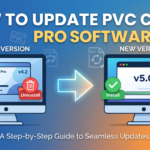
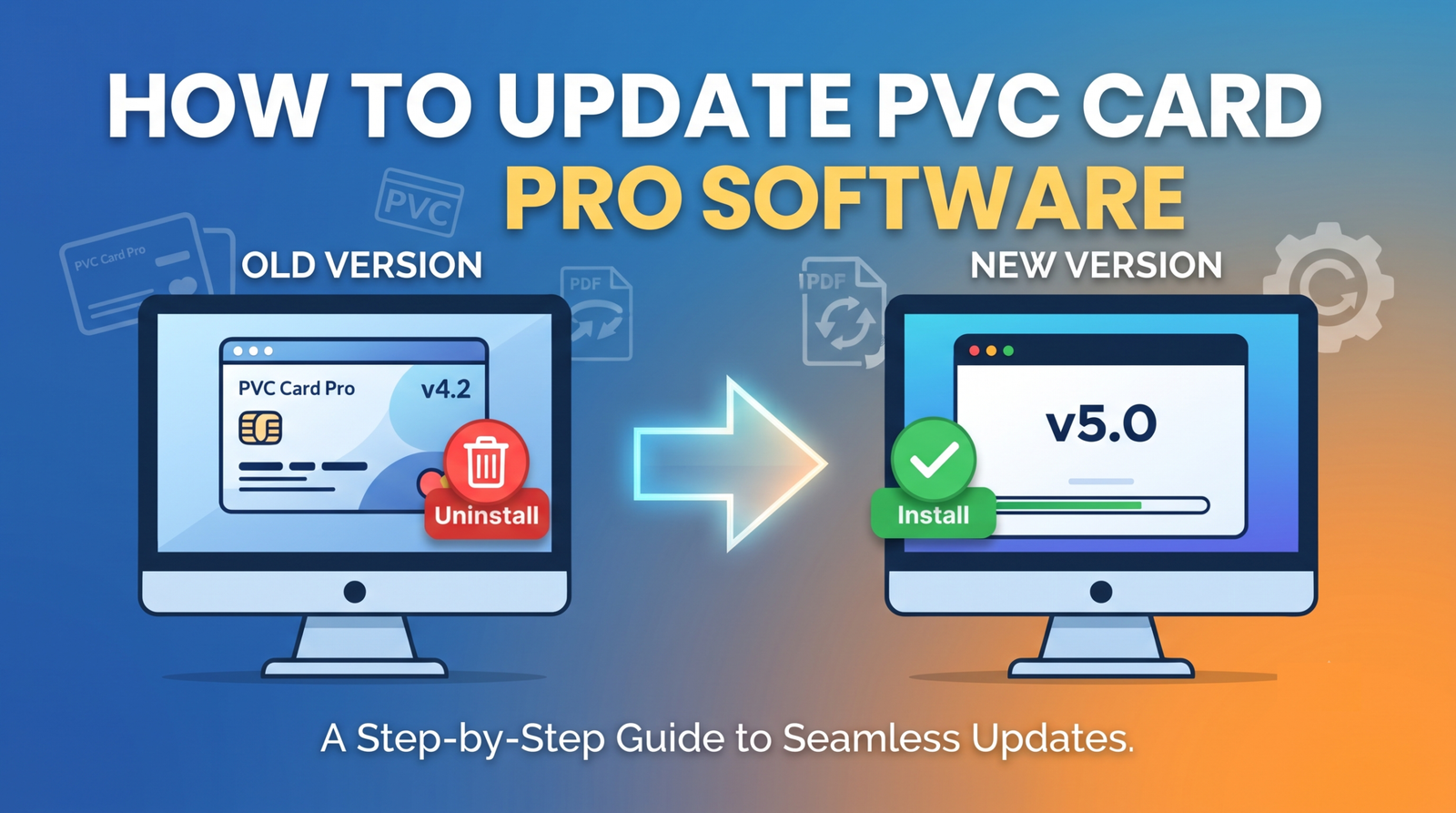
Step-by-Step: Updating Your PVC Card Pro Software
Step 1: Remove the Existing Version
Before installing the new file, it is best practice to clear out the old installation to prevent file conflicts.
- Open the Control Panel: Click the Start button, type “Control Panel,” and press Enter.
- Find Programs: Click on Uninstall a program (under the “Programs” category).
- Locate PVC Card Pro: Scroll through your list of installed programs until you find “PVC Card Pro.”
- Uninstall: Right-click on the software and select Uninstall. Follow the on-screen prompts to remove it completely from your computer.
Step 2: Download the Latest Version
Once the old version is gone, head to the official source to get the newest release.
- Always download your updates directly from the official Real Softwares website or the link provided to you by your software vendor. Avoid downloading from third-party sites to ensure the security of your system.
Step 3: Install the New Software
After downloading the installer file (usually a .exe file):
- Run the Installer: Locate the downloaded file, right-click it, and select Run as administrator. This ensures the software has the necessary permissions to set up properly.
- Follow the Prompts: The installation wizard will guide you through the process. Click “Next” as prompted.
- Complete and Restart: Once the installation finishes, it is highly recommended to restart your computer. This allows Windows to finalize the setup of any new drivers or services required by the software.
You can watch the complete tutorial on how to update software and do the setting for Epson L805 and Epson L8050.